Suites and Rules
The suites and rules tab is used to define and apply suites and rules to matched .EXE files on computers in the selected business unit.
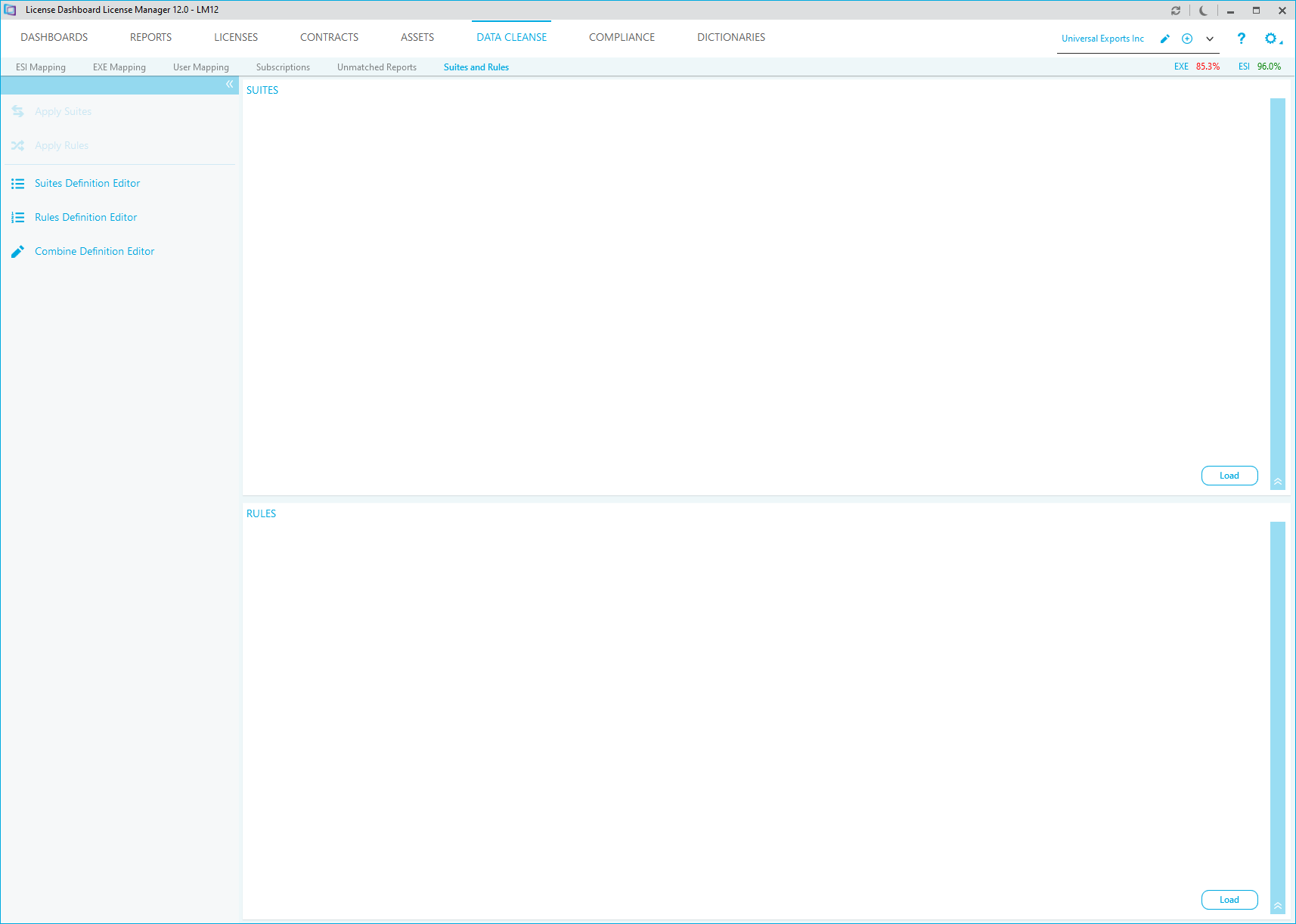
Suites
Suites are used to group individual applications into application suites. For example, a computer with Microsoft Word 97, Microsoft Excel 97 and Microsoft PowerPoint 97 could be displayed as having a Microsoft Office 97 Std suite installed.
Double-click on a folder in the tree to view its components. The folders are lists by Product Family, Product Suites and Products. The Products are represented with a tick or cross representing their function in the Suite.
- A green tick indicates that the product must be installed for the Suite to apply.
- A grey tick indicates that the product may be installed for the Suite to apply.
- A red prohibited symbol indicates that the product must not be installed for the suite to apply.
Suites can be edited using the Suites Definition Editor.
Pre-made suites can be downloaded from the License Dashboard website. You can log in using your forum name and password. Download and extract the .ZIP file before loading them into the Suites and Rules tab.
Please note, License Dashboard update the available suites. To update your existing suites, download the latest version and extract the .ZIP file to the same folder and replace the existing files.
Rules
Rules are used to replace products on specific computers. For example, if Microsoft SQL Server 2005 is installed on two computers and they are licensed per processor, use a Rule to replace the Microsoft SQL Server 2005 product description with Microsoft SQL Server 2005 Per Processor.
Double-click on a folder in the tree to view it's components. The folders are lists by Custom Rule, Product Replacements and Affected Computers. The Products are represented with a tick or cross representing their function in the Suite.
- A red prohibited symbol indicates the product to be replaced.
- A green tick indicates the replacement product.
Rules can be edited using the Rules Definition Editor.
How to Load a Suite or Rule
A Suite or Rule need to be loaded into the workspace before it can be applied to the data.
- Click Load to load a pre-saved Suite or Rule into the Suites Rules Editor.
- Browse to the .XML Suite or Rule file.
- Select it and click Open. The Suite or Rule is loaded into the workspace.
Please refer to the Apply Rules and Apply Suites help pages for details on how to apply a suite or rule to the data.